Make your data work harder when you tap into Extend’s reporting and reconciliation capabilities. You can receive automatically generated expense reports aligned with your billing cycle, download your company’s spend data, and integrate with your accounting software to help you reconcile your credit card statement faster.
If you haven’t yet done so…
Integrate your accounting platform (or ERP) with Extend to import card transactions as charges clear. With an integration, you can sync your chart of accounts with Extend's expense categories for consistency between systems.
Set up expense category codes (if you don’t connect Extend with your accounting software) so your employees and finance team can tag transactions.
Extend captures the expense categories coded to transactions. When you sync or upload your transactions from Extend to your accounting software, the transaction data automatically maps to your general ledger.
With expense categories standardized across all systems, your finance team can easily maintain consistent bookkeeping, reconcile faster, and gain a better understanding of company spend.
From the Rules and Workflow section, Automation Report Cycle Tab, in the Organization Settings, customize your reporting cycle to match your credit card billing statement. At the end of each cycle, the Owner and Admins will receive an automated expense report with all virtual card transactions (and physical card transactions with select bank partners) from the designated cycle.
Reconcile your credit card statement
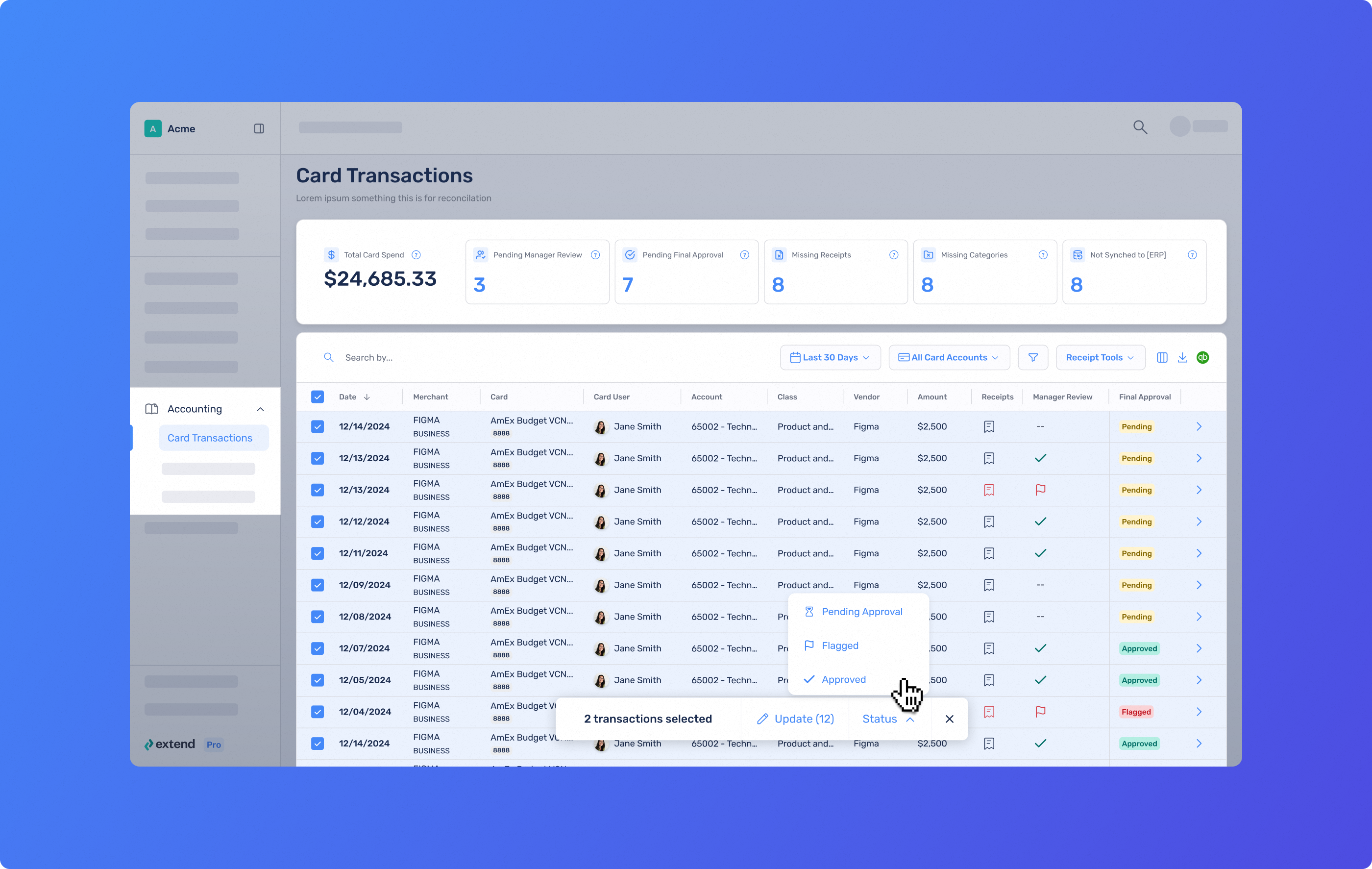
From the web app: Navigate to the Card Transactions page in the Accounting section. You can use filters for card account, statement cycle and any additional criteria to streamline reconciliation.
In the report, you can mark transactions as “reviewed” or “flagged,” edit expense categories, and send receipt reminders on any missing receipts. When you’re done, you can push transactions to your connected accounting software. Voilà—so simple!
Download reports
From the web app: Depending on your reporting needs, you can filter to refine the data you wish to export, opt to include any receipt attachments, and download a .CSV file.
Note: Export and accounting integration are limited to select bank partners and customers on the Pro and Enterprise plans.
Analyze spending insights
Easily upload your Extend data to use on a third-party reporting or analytics tool for even deeper insights into company spending.
🔎 Did you know? Stop reconfiguring your transactions table every time you log in. With Saved Views, you can set up the Card Transactions table exactly the way you need it—and come back to it instantly, every time.
FAQs
Can I save my filter and column settings on the Card Transactions table?
Yes. With Saved Views, you can save your preferred filters and columns and return to them instantly from the Views dropdown—no need to reconfigure every time you log in.
Who can download data?
All Extend users may download their own Extend data and receipts. Only the Owner and Admins can download all data from their organization—including receipts, reimbursement reports, and guest virtual card data. Card Managers and Bookkeepers can download all data relevant to the registered cards they have permission to view. The designated reimbursement approver can download the organization’s reimbursement data, including attached receipts.
Can I import my physical card transactions into Extend?
Select bank issuers support connecting physical credit card transactions into Extend. If your bank issuer offers this type of integration, you can follow these steps to set it up. This is a great way to reconcile your whole credit card statement and maintain visibility over all card spending in one convenient place.
Can I export to my accounting software or ERP?
Exports and accounting integrations are available to select bank partners and customers on the Pro and Enterprise plans.
If you're on the Starter plan and want access, contact your Owner, Admin or Account Manager to explore upgrade options. If you're the Owner or Admin, you can upgrade directly in the app.


.png)
.png)


%201.png)


%201.png)
