


Try our demo
Features
Virtual cards
Budgets
Bill pay
✨New!
Receipt management
Reimbursements
Reconciliation
Integrations
Explore all features
Participating banks
American Express
Banc of California
BMO
City National Bank
Corpay
HSBC
PNC
Regions Bank
Silicon Valley Bank
Texas Capital

Empowering teams & staying on budget with Levin + Riegner

Extend for

Vendor payments
Pay vendors, make purchases, and manage subscriptions with the control and security of virtual cards.

Virtual employee cards
Empower employees to manage expenses with accountability and transparency.
Expense management
Automate manual processes and get a centralized view of expenses across all the company credit cards.

Tracking spend
Gain real-time visibility over every charge

Reconciliation
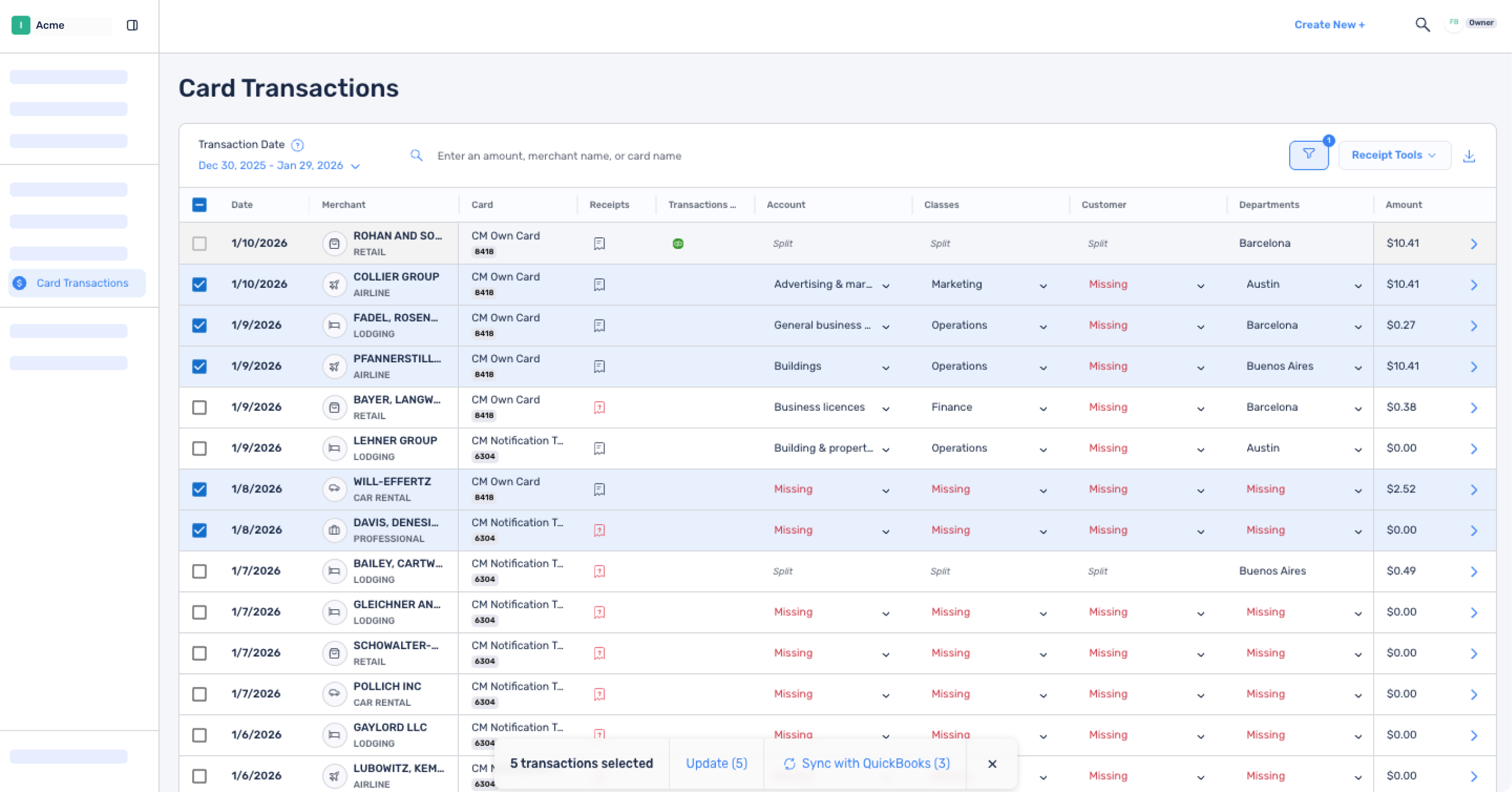
Close your books in a fraction of the time

Integrated payments
Automate payment workflows and manage transactions at scale with our flexible virtual card API.
Custom AI agents
Integrate our API into your agentic workflows to achieve a whole new level of automation and efficiency


%201.png)


%201.png)
